
The Quad basics
The Quad cursor menu, also known as the Quad, is a context-sensitive menu that appears at the cursor location. It provides quick access to commands for editing, selecting, showing or hiding and creating entities.
The Quad is context-aware and automatically displays commands that are relevant to the current context, whether you are working with a selected entity, hovering over an entity or working without a selection set.
The content of the Quad is defined in the current workspace and is highly customizable. See the Customizing the Quad article for more information.
Activating the Quad
To activate the Quad, use one of the following methods:
- Click the Quad field in the Status Bar at the bottom of the BricsCAD application window.
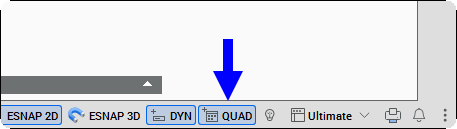
- Press the F12 key assigned to the Quad.
- Right-click the Quad field and choose an option in the context menu. This behavior is controlled by the QUADDISPLAY system variable.
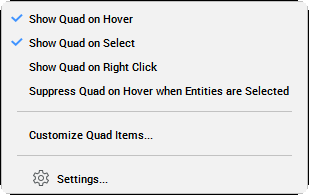
- Show Quad on Hover
- Displays the Quad when hovering an entity.Note: When the SELECTIONPREVIEW system variable is Off, the Display the Quad when the cursor hovers over an entity option of the QUADDISPLAY system variable is ignored, and the Quad is not displayed.
- Show Quad on Select
- Displays the Quad after selecting entities.
- Show Quad on Right Click
- Displays the Quad when you right-click a selected entity, an entity under the cursor or empty space when no entities are selected.Note: Right-click behavior can be customized using the SHORTCUTMENU and QUADDISPLAY system variables. Depending on the selected settings, a short right-click can display the Quad or repeat the last command, while a long right-click displays the context menu. See the Right-click menus article for more information.
- Suppress Quad on Hover when Entities are Selected
- If entities are selected, the Quad does not display when hovering over other entities.
Editing the Quad settings
Right-click the Quad field in the Status bar, then choose  Settings... in the context menu. The Settings dialog box opens, showing the Quad settings.
See the Overview of the Quad settings article for more information.
Using the Quad to edit entities
To edit an entity using the Quad, use the following steps:
- Hover over or select an entity to display the Quad, which shows the most recently used commands for this entity type.
 Note: If the ROLLOVERTIPS system variable is set to On, the properties of the entity display next to the Quad.
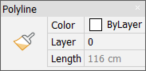
- Move the cursor over the Quad to expand the 6 most recently used commands that apply to the selected entity. The number of expanded commands is defined by the QUADWIDTH system variable.
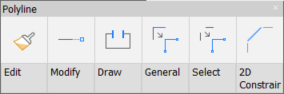
- Move the cursor over the tabs to expand the command groups.
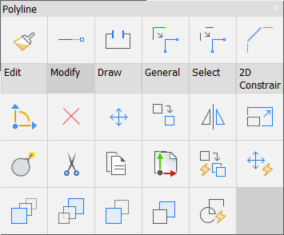
- Click an icon to launch the command.
- When you hover over a dimension subentity while pressing Ctrl, the Quad displays commands relevant to the highlighted subentity type. For example, when a dimension arrow is highlighted, the Quad displays the Flip Dimension Arrowhead command.
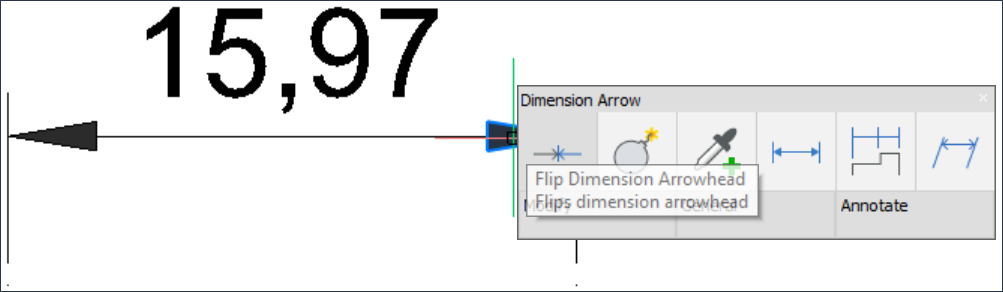
- You can also quickly launch the default command displayed in the Quad directly by right-clicking if the QUADCOMMANDLAUNCH system variable is set to 1.
Using the No Selection Quad
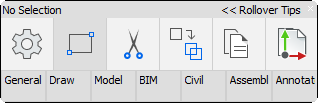
If the Display the Quad on right-click option of the QUADDISPLAY system variable is set, entity creation commands are available in the Quad (No Selection Quad). You can also right-click the Quad field in the Status Bar and check the option in the context menu.
- To use the No Selection Quad, use one of the following methods:
- Move the cursor to a void area of the drawing window and right-click.
- When the cursor is on an entity, hold down the right mouse button longer.
The No Selection Quad displays, showing the icons of the most recently used commands.
-
Do one of the following:
- Move the cursor over the Quad to expand the 6 most recently used commands.
- Move the cursor over the tabs to expand the command groups.
-
Execute the command.